So far we have shown you how to buy your new hosting and then install WordPress with WooCommerce. Now we are going to show you how to install an Elementor based theme called Futurio.
Why Futurio?
Futurio is a fast and lightweight, multipurpose WordPress theme. It is suitable for portfolio, business, photography, landing pages, and eCommerce websites. You can easily build an eCommerce website with WooCommerce.
This theme supports the WooCommerce plugin and brings many new design options. Futurio is designed to work with all page builders available in the market such as Elementor. This theme is also compatible with Jetpack, Contact Form 7, Yoast SEO and many more free and premium WordPress plugins.
It is a fully responsive theme and makes your website look great on all devices.
How to Install Futurio
Installing Furutio is easy and can be done automatically from the WordPress Dashboard.
Step one
- Login to your WP Dashboard
- Go to Appearance – Themes – Add New
- Search for – Futurio
- Install Futurio theme and activate
Step two
- Click on “Get started with Futurio” or go to Appearance – Futurio
- Install and activate Futurio Extra plugin
Step 3
Once you install and activate the Futurio theme, install and activate Futurio Extra plugin. This plugin adds more options and features (like demo import, shortcodes, elementor blocks, post/page options, etc…)

If you dismiss the notice, you can install the plugin manually. You can find the plugin by going to Dashboard – Plugins – Add new and type the “Futurio Extra” in the search box.
Install the sample data in one click
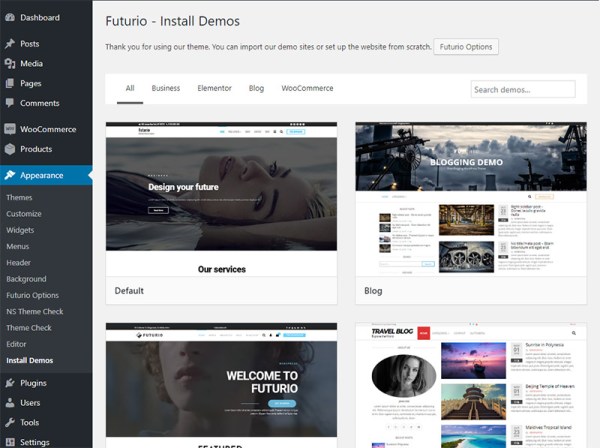
- Go to Appearance > Install Demos tab.
- Click on the demo you want import
- Install the required plugin(s) for the demo and go to next step
- Check what you want to import and import the demo
Import will not modify or remove your existing content or customizer options.
Examples:
If you made some changes before the import (for example if you set the logo), the importer will skip this option during the import and your logo will not be affected.
If you set your “Homepage” under Settings – Reading, before the import, it will not be affected after the demo import and you must set the “Home” page as your “Static page” if you want same layout as you see in demo.
Once you have imported the Demo data you can either customise the sample data that has been added or you can create your own from scratch